Mesh Pop-Up Menu
A pop-up menu is available to access additional functions for meshes.
| Description | |
|---|---|
|
Measurement Inspector* |
Opens the Measurement Inspector panel (see Using the Measurement Inspector). |
|
Export Mesh to File |
Lets you save the selected mesh in a number of different file formats suitable for 3D printing and other purposes (see Exporting Meshes). |
| Export as ORSObject |
Lets you save the selected mesh(es) in the ORSObject file format (*.ORSObject extension). See Exporting Objects. NOTE An additional item, Export as Multiple ORSObject, will appear if you select multiple meshes or a mix of meshes and other objects (see Exporting Objects for information about exporting multiple files). |
| Execute Macro |
Provides a shortcut for selecting macros that can be executed for the selected mesh(es). See Playing Macros. |
|
Mesh Decimator |
Opens the Mesh Decimator panel, in which you can reduce the number of vertices, edges, and triangles in a mesh (see Decimating Meshes). |
|
Mesh Registration |
Opens the Mesh Registration panel, in which you can register a selected mesh with a reference (see Registering Meshes). |
|
Signed Deviation Map |
Calculates the deviation (distance) between two sets of meshes and shows the error as a colored map on the mesh surfaces (see Generating Deviation Maps). Deviation map measurements are added to the selected mesh and appear in Scalar information box (see Mesh Scalar Information). |
|
Deviation Map |
Calculates the deviation (distance) between two sets of meshes and shows the error as a colored map on the mesh surfaces (see Generating Deviation Maps). Deviation map measurements are added to the selected mesh and appear in Scalar information box (see Mesh Scalar Information). |
|
Delete a Scalar Value Slot* |
Lets you delete selected measurements from scalar meshes (see Mesh Scalar Information). |
|
Mapping Scalar Values From |
Lets you map selected measurements contained within a scalar mesh to another mesh or multi-ROI (see Mesh Scalar Information). |
|
Copy Scalar Values To |
Lets you copy selected measurements contained within a scalar mesh to another mesh (see Mesh Scalar Information). |
|
Align Centroid With |
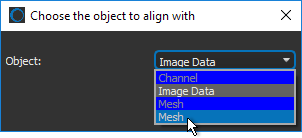
Automatically aligns the centroid of the selected mesh with the centroid of another object. Other applicable objects include volumetric image data, regions of interest, and meshes. These objects can be selected in Choose the object to align with dialog, as shown below.
NOTE You can undo the applied translation by clicking the Undo |
|
Apply Transformation From |
Lets you apply simple transformations to the selected mesh, such as translations and rotations, that were applied to another object. You should note that only objects that were translated and/or rotated, will be available in the Choose an object dialog, as shown below.
NOTE You can undo each applied transformation by clicking the Undo |
|
Copy |
Copies the selected mesh. Copied meshes will appear as new items in the Data Properties and Settings panel. |
 button in the Move panel. You should note that you may have to activate the Displace
  tool to access undo.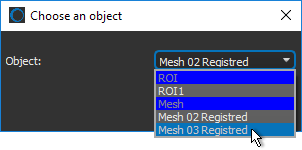
* Available only for meshes with scalar values.

 LEARNING LINKS

